Quick, friendly guides to every tool in Coloring with Miya. Grown-ups, this is a great page to read together with your young artist.
1
Getting started
The first time you open the app, Miya says hello and asks a couple of quick questions so the app fits your artist.
Choose a Coloring Mode.Young Kids has big buttons, simple tools, and lots of help from Miya. Standard has all the coloring tools with friendly tips. Advanced has every tool and fewer interruptions.
Pick a few favorite categories so Home shows pages you'll love.
Tap Start Coloring. A short tutorial shows how to pick a color, tap to fill, undo, and zoom. You can skip it any time.
Along the bottom you'll find five tabs: Home (continue coloring, Today's Challenge, featured and new books), Explore (search, categories, and all books), My Gallery, Achievements, and Settings.
Tip: Changing the Coloring Mode later never changes your artwork. Find it in Settings.
2
Tap to fill
Open any page from Home or Explore.
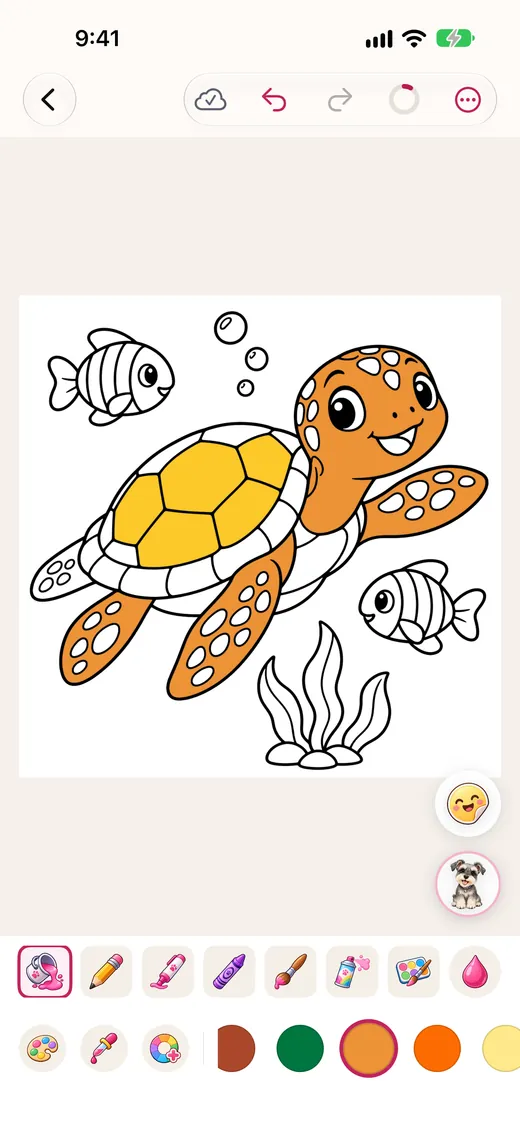
Choose the Fill tool and pick a color from the palette.
Tap a shape. It fills right up to the lines, with no spills.
Made a mistake? Tap Undo. Changed your mind again? Tap Redo.
Zooming: pinch with two fingers to zoom in on small shapes, and drag with two fingers to move around. A two-finger tap zooms back out to fit the page.
Tip: Your picture saves by itself as you go, so you can stop any time and pick up where you left off from Continue Coloring on Home.
3
Brushes
Want to draw freely? Pick a brush from the tool strip.
Pencil
Crayon
Marker
Paintbrush
Airbrush
Watercolor
Eraser
Glitter
Chalk
Calligraphy
Star Stamps
Blender
Smudge
Purple brushes are in Advanced mode. Young Kids mode keeps it simple with Fill, Crayon, Marker, and Eraser. Blender and Smudge pick up the colors already on the page and mix them.
Brush settings
With a brush selected, tap the settings button (the sliders) next to the brushes:
Size and Opacity change how big and how see-through each stroke is. A sample stroke at the top shows the result as you slide.
Stay Inside the Lines keeps your strokes inside the shape you started in. Perfect for neat coloring.
The palette bar holds your colors, plus three handy buttons: Palettes, Eyedropper, and Custom Color.
Switch palettes
Tap Palettes to choose from twelve collections: Rainbow, Pastel, Tropical, Nature, Ocean, Sunset, Neon, Autumn, Winter, Skin Tones, Metallic, and Monochrome. Two bonus palettes, Miya's Favorites and Candy Shop, unlock when you earn badges.
The Palettes sheet also shows colors For This Page, your Recent Colors, Favorite Colors, and My Palettes. Tap New Palette from This Page's Colors to save the colors you used. Swipe a palette to delete it.
Mix your own color
Tap Custom Color.
Use the Wheel, or the Sliders for Hue, Saturation, and Brightness. Grown-up designers can type a Hex code.
Tap the heart to Add to Favorites, then tap Use Color.
Eyedropper: tap it, then tap anywhere on your picture to grab that exact color.
Tip: Want every blue shape to be purple instead? Open the More menu (the ··· button) and choose Replace a Color.
5
Gradients and patterns
With the Fill tool selected, tap Fill Style and choose Solid, Gradient, or Pattern.
Gradient blends one color into another. Pick a Linear or Radial shape, the color to Blend into, and a direction.
Pattern fills a shape with Polka Dots, Stripes, Stars, Hearts, Glitter, Fabric, Paper, Metallic, Wood, Marble, or Watercolor.
Already filled a shape? Touch and hold it to open Edit Fill. For gradients you can move the center, change the spread, and add or remove colors. For patterns you can change the size, rotation, pattern color, and background color.
6
Color by number
Many Level 1 to 3 pages can be colored by number, which is great for practicing counting and matching.
Open a page, tap the More menu (···), and turn on Color by Number.
Numbers appear in the shapes, and a number bar replaces the palette.
Pick a number, then tap the shapes with that number. A shape only fills when the number matches, and a gentle buzz lets you know if it doesn't.
A checkmark appears on each number once all its shapes are colored, so it's easy to see what's left.
7
Ask Miya
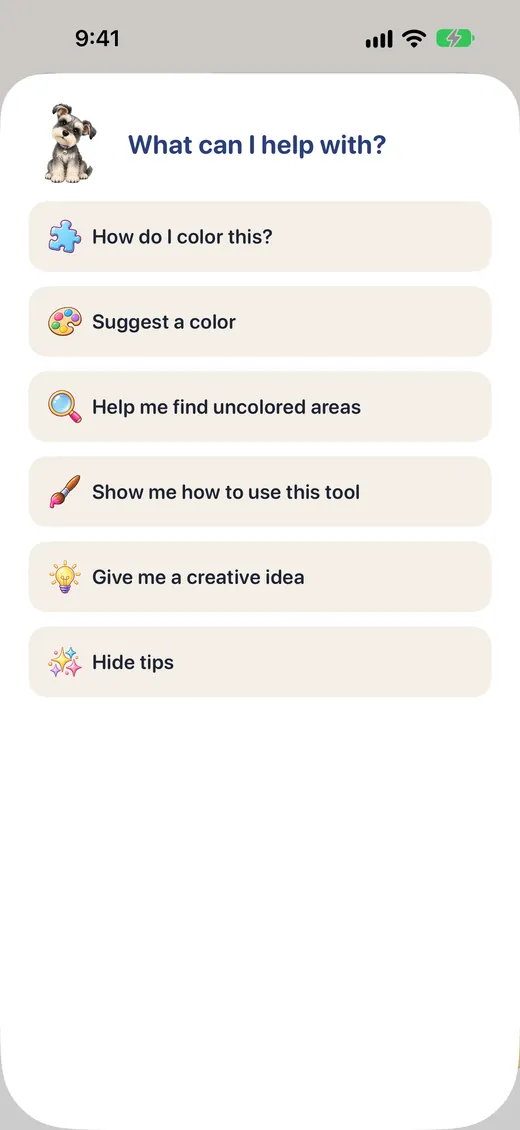
Tap the Miya button on the coloring screen and she'll ask, "What can I help with?"
How do I color this? A quick reminder of the basics.
Suggest a color. Miya picks one for you and selects it.
Help me find uncolored areas. Miya highlights a shape you missed.
Show me how to use this tool. A tip for whatever tool you're holding.
Give me a creative idea. A fun challenge to try.
Hide tips / Show tips. Quiet Miya down, or bring her tips back.
Below those, How do I…? lists quick answers about brush size and opacity, undo, zooming, colors, stickers, symmetry, saving, and more. The list fits the Coloring Mode, so younger artists see a shorter one.
Tip: For pre-readers, turn on Miya's Voice in Settings and Miya will read her tips out loud. It works on the device with no internet needed, and stays quiet while VoiceOver is running.
Give Miya a more natural voice
Miya uses the best voice installed on your iPhone or iPad. To make her sound more natural, download a better one:
Open the Settings app (not the one in Coloring with Miya) and go to Accessibility > Spoken Content > Voices.
Choose your language, then a voice marked Enhanced or Premium, and tap the download button.
Come back to Coloring with Miya. She'll switch to the new voice by herself.
8
Stickers, layers, and symmetry
Stickers
Tap the Stickers button at the bottom right of the page and choose from 18 stickers like stars, rainbows, unicorns, and cupcakes. Tap a sticker to select it, then drag to move it, pinch to resize it, and twist to turn it. You can Duplicate or Delete it too.
Symmetry
Open a brush's settings (the sliders button) and, under Symmetry, choose Mirror, Four-Way, Radial 6, or Radial 8. Draw on one side and watch your strokes repeat around the page. It's magical on mandalas!
Layers (Advanced mode)
Open the More menu and choose Layers. The line art stays safely on top, and you can Add Drawing Layer, hide or lock layers, change their opacity, and rename, reorder, duplicate, clear, or delete them.
9
Save, share, and print
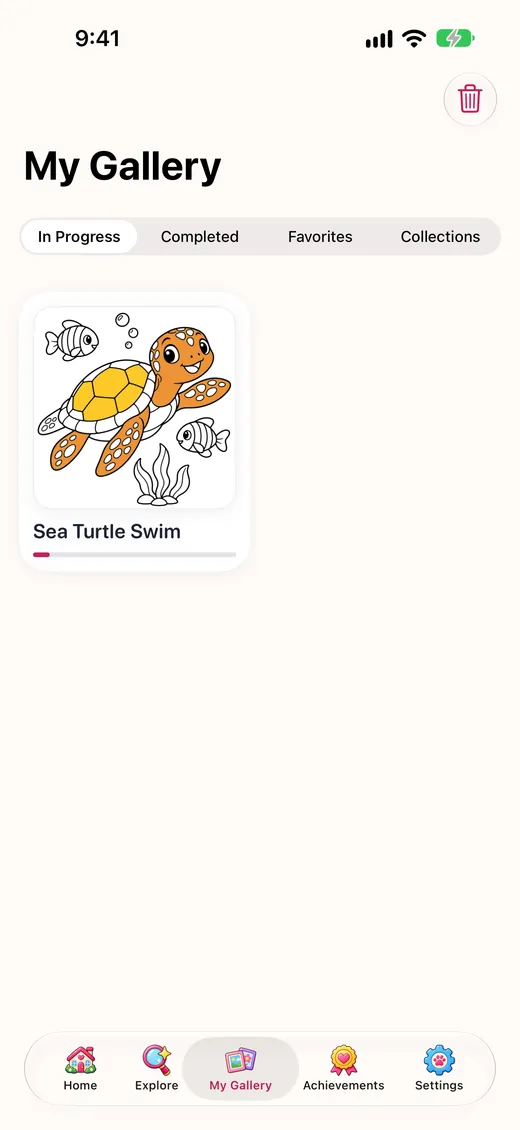
Every picture saves automatically. Find them all in My Gallery, filtered by In Progress, Completed, Favorites, and Collections.
Touch and hold a picture to Rename, Duplicate, Add to Collection, Export, Start Over, or Delete it.
Want a fresh start? While coloring, tap the dots at the top and choose Start Over. It asks first, and if you change your mind right after, the Undo arrow brings your picture back.
Export a picture
Touch and hold the picture and choose Export.
Pick PNG, JPEG, or PDF, and Standard or High Resolution size. PNGs can have a Transparent Background.
Choose Save to Photos, Print, or Share. Sharing asks a grown-up first.
Oops, deleted something? Deleted pictures stay in Recently Deleted for 30 days, where you can tap Restore.
10
Badges and Today's Challenge
Finish a picture (or tap Mark as Finished in the More menu) and Miya celebrates with you. From the celebration you can Save to Photos, Share, jump to the Next Page, or Keep Coloring.
The Achievements tab shows your nine badges plus how many pictures and books you've finished and your total coloring time.
Today's Challenge on Home picks a fresh page every day: a Daily Pick on weekdays and a Weekend Mandala on Saturdays and Sundays, along with a Color of the Day. It's just for fun, so skipping a day is totally fine.
11
Getting more books
9 books come free with the app. Every other book can be unlocked with a one-time purchase:
Unlock This Book for $0.99 (US).
Unlock Every Book for $9.99 (US), which includes books added in the future.
Purchases always ask a grown-up first with a quick multiplication question. If your family uses Ask to Buy, the app shows "Waiting for approval" until a parent approves. Purchases work with Family Sharing, so everyone in your family group gets them.
Unlocked books download the first time you open them; after that they work offline. To get purchases back on a new device, go to Settings > Purchases > Restore Purchases.
On iPad, the coloring screen spreads out with tools on both sides, and Open as a Book shows pages as a two-page spread.
Apple Pencil
Press harder for bolder strokes; Pencil pressure is supported.
Hover above the screen (on supported Pencils) to see the brush size before you draw.
Double-tap or squeeze the Pencil to switch to the Eraser and back.
Palm rejection: once you use the Pencil, fingers move and zoom the page instead of drawing, so a resting hand won't leave marks. Turn this off with Only Apple Pencil Draws in Settings.
Keyboard shortcuts
Key
Action
F
Fill
P
Pencil
M
Marker
C
Crayon
B
Paintbrush
A
Airbrush
W
Watercolor
E
Eraser
I
Eyedropper
[]
Smaller or bigger brush
1 to 9
Pick a color from the palette
⌘Z
Undo
⇧⌘Z
Redo
⌘= / ⌘-
Zoom in / zoom out
⌘0
Fit to screen
13
Settings for grown-ups
Open the Settings tab to fit the app to your child:
Coloring Mode: Young Kids, Standard, or Advanced.
Miya: Show Miya's Tips, Miya Animations, Miya's Voice, Completion Celebrations, and Fewer Interruptions.
Apple Pencil: Only Apple Pencil Draws.
Purchases: Unlock Every Book and Restore Purchases.
Help: Replay Welcome and Replay Coloring Tutorial.
The app follows your device's accessibility settings too: VoiceOver can step through uncolored shapes and fill them with a double-tap, text grows with Dynamic Type, and animations calm down with Reduce Motion.